- File
- Share
-
Help
-
Help
- On a Mac, use Cmd instead of Ctrl.
Ctrl+A Select everything
Ctrl+D Duplicate the selected item
Ctrl+E Clear the design
Ctrl+O Open a saved design file
Ctrl+Shift+S Download the design file
Ctrl+P Print
Ctrl++ Zoom in
Ctrl+- Zoom out
Ctrl+0 Reset zoom
Ctrl+Z Undo
Ctrl+Shift+Z Redo
Delete Delete the selected item
Arrow keys Move the selected item 1 px
Shift+Arrow keys Move the selected item 10 px - Add text: choose Text on the left, then click it or drag it onto your design. Double-click the text to edit it.
Add an image: choose Images on the left, then drop a JPG, PNG or SVG file there, or click to upload one.
Print quality: if an image is too small to print well at your size, we’ll tell you when you add it.
Save your design: choose File > Save to My Designs. Sign in first, and you can open it again from My Designs in your account.
-
- Shop
- Undo
- Redo
- 0.0
-
Cart
- Back to shop
- Design
- Product
- Templates
- Clip art
- Images
- Text
- Shapes
- Layers
Drop an image here or click to upload
Click or drag to add text








Report a problem
Tell us about anything that isn’t working in the design editor, or how we could make it better.
To include screenshots or a video, upload them to imgur.com or another file-sharing service and paste the links here.
-
Add text, images or shapes from the left to start.
- The selected items are grouped. | Ungroup
- Group Move the selected items together
-
-
Fill options
Save this color
-
- Create QR code
-
Options
-
Line up the selected item with other items as you move it. -
On: keep your design and add the template to it. Off: clear the design first. -
Replace the selected image instead of adding a new one.
-
- Replace image
- Crop
-
Mask
-
Select mask layer
-
-
Remove background
-
Remove background
-
Strength:
-
Mode:
-
-
Filters
-
Filters
-
- Original
- B&W
- Satya
- Doris
- Sanna
- Vintage
- Gordon
- Carl
- Shaan
- Tonny
- Peter
- Greg
- Josh
- Karen
- Melissa
- Salomon
- Sophia
- Adrian
- Roxy
- Singe
- Borg
- Ventura
- Andy
- Vivid
- Purple
- Thresh
- Aqua
- Edge wood
- Aladin
- Amber
- Anne
- Doug
- Earl
- Kevin
- Polak
- Stan
-
Brightness:
-
Saturation:
-
Contrast:
-
- Clear filters
- Click then drag the mouse to start drawing. Ctrl+Z = undo, Ctrl+Shift+Z = redo
- QR code text
-
Fill options
-
Fill options
Save this color
-
Transparent:
-
Stroke width:
-
Stroke color:
-
- Ungroup
-
Arrange layers
-
Position
-
Position on the design
Lock position:
-
Center vertically
-
Top left
-
Top center
-
Top right
-
Center horizontally
-
Middle left
-
Middle center
-
Middle right
- Use the arrow keys to move 1 px. Hold Shift to move 10 px.
-
Bottom left
-
Bottom center
-
Bottom right
-
-
Transforms
-
Rotate:
-
Skew X:
-
Skew Y:
-
Flip X:
Flip Y:
Hold Shift to resize freely
-
-
Font family
-
Edit text
-
Edit text
-
-
Font size:
-
Letter spacing
-
Line height
-
-
Text effects
-
Text effects
-
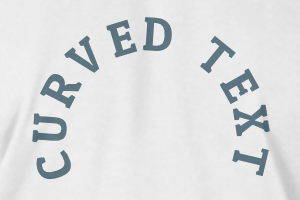
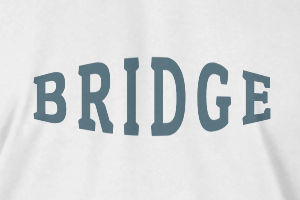
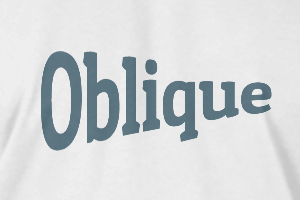
-
Radius
-
Spacing
-
Curve
-
Height
-
Offset
-
Trident
-
-
Text align
- Uppercase or lowercase
- Bold
- Italic
- Underline
Scroll to zoom